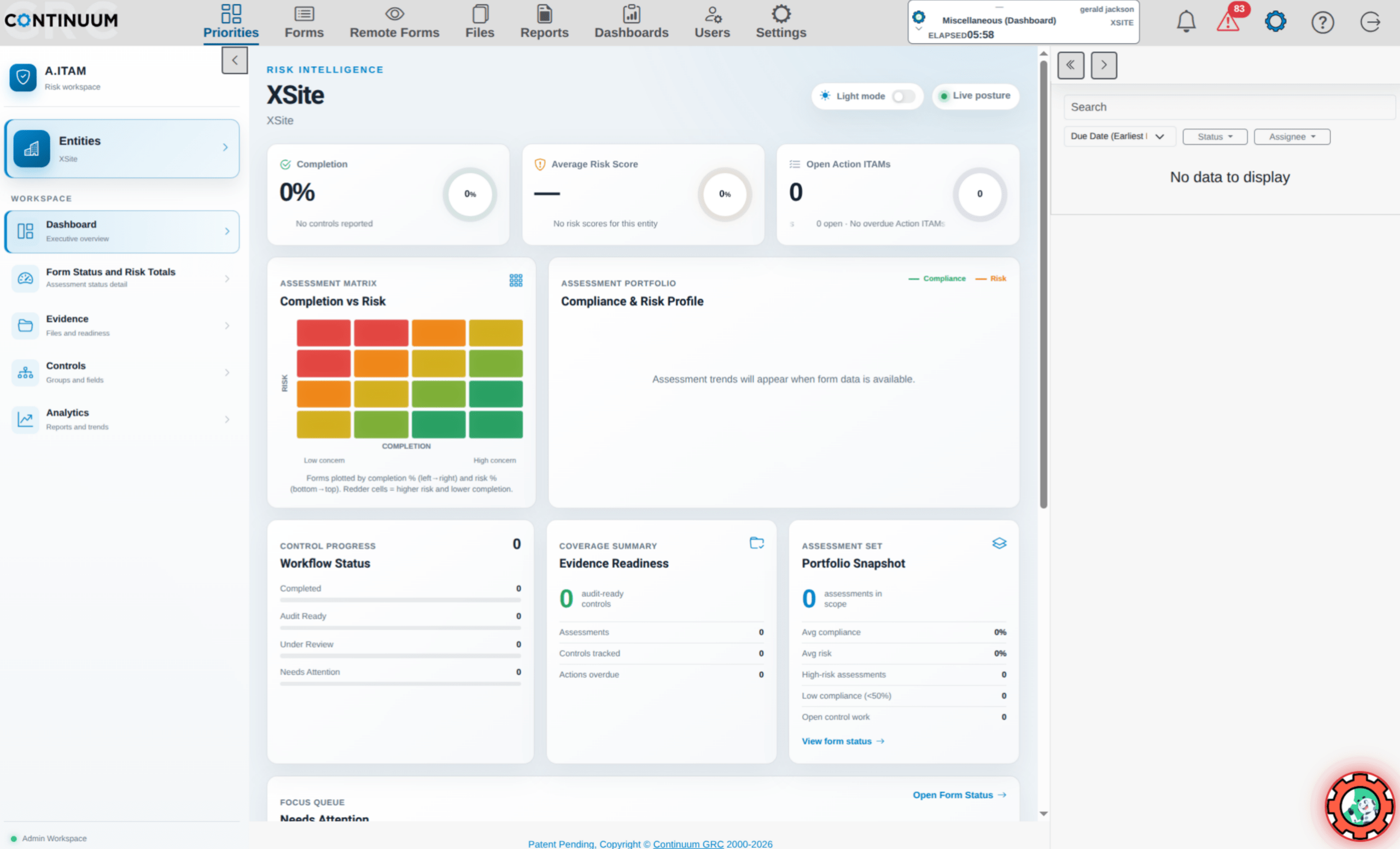
The My Dashboard page combines key information and pending tasks into one intelligent, actionable interface. It is only available to Examiners and Users.
In this section, we will explore the areas of the My Dashboard interface, how each works, and how they make it easier to complete your tasks within the system.
My Priorities View
The My Dashboard page is divided into three main areas: your Action ITAMs, Form Scores, and Status and Risk Indicators. Each area is designed to provide important information at your fingertips.
Action ITAMS
Action ITAMs serve as a hybrid communication tool and task manager, allowing Examiners and Users to collaborate to achieve compliance. The top-left section of the My Dashboard interface displays the Action ITAMs currently assigned to you and enables you to view more information about each.
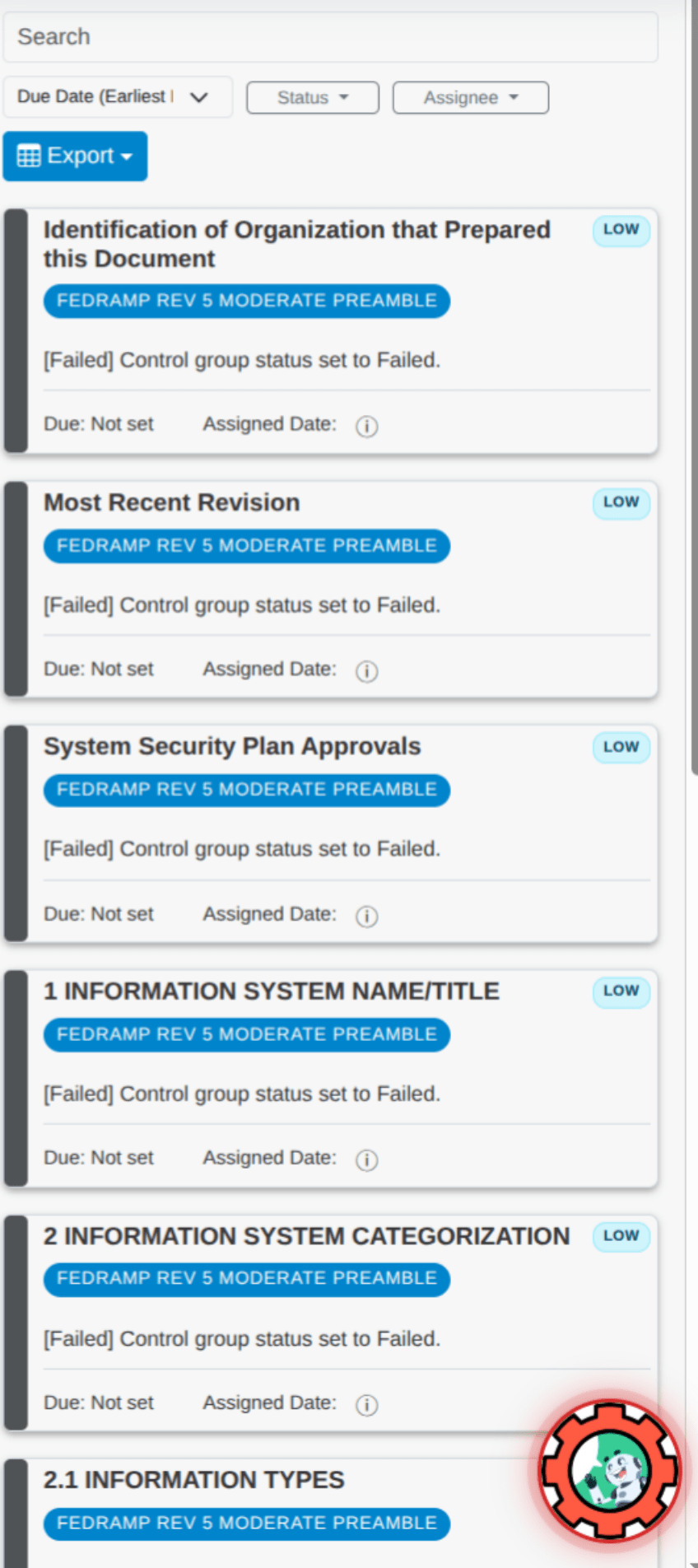
Each line item in the list of Action ITAMs displays the Form Name, Title, Action ITAM, and Due Date. Clicking the Form Name takes you to that field, allowing you to access the Action ITAMs for that field. The line items can also be sorted using the three (3) ellipses menu in the display’s top left by selecting the desired sort.
Note: The default sort is by Date.
To the left of the Action ITAM section of the dashboard are one or more tabs listing the Entities to which you have access. The Action ITAMs displayed will be related only to the selected entity. For more information, see the Action ITAM section of this guide.
Scores
The My Dashboard interface’s scores section displays the selected form’s scores. When you first view the interface, the Score section will be empty until you select one of the forms in the lower section of the Dashboard. As soon as you click on a form in the lower section of the dashboard, the associated scores will be displayed.
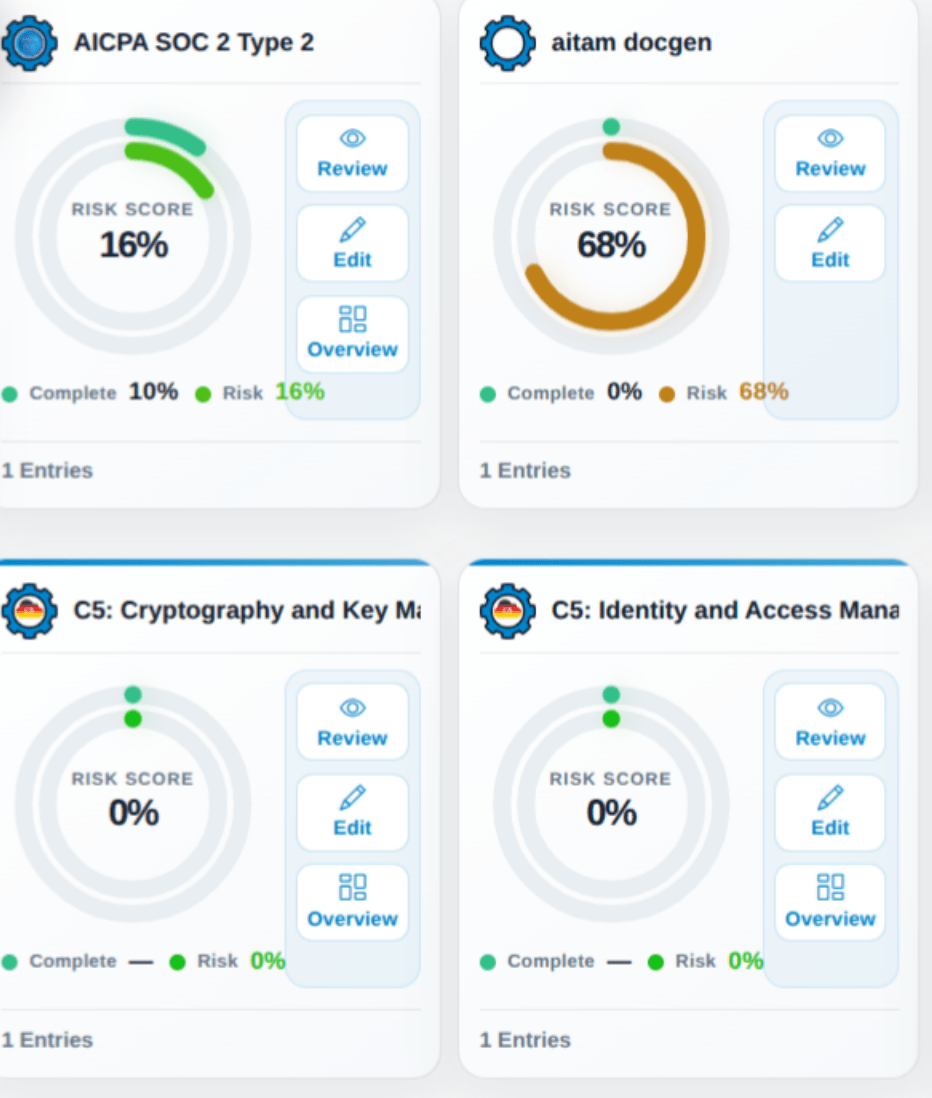
The Status Score displays the number of fields in each status and is the ratio of compliant fields to the total number of fields. Risk is calculated based on the scores of compliant controls (green) vs. less compliant controls. Maturity is calculated as the risk percentage divided by the number of compliant fields.
- A higher Status Score indicates better progress toward completion and compliance.
- A lower Risk Score is preferable, indicating a lower level of risk in the monitored system.
- A higher Maturity Score is desired, as it indicates that an entity has mitigated risk effectively and made greater progress toward compliance.
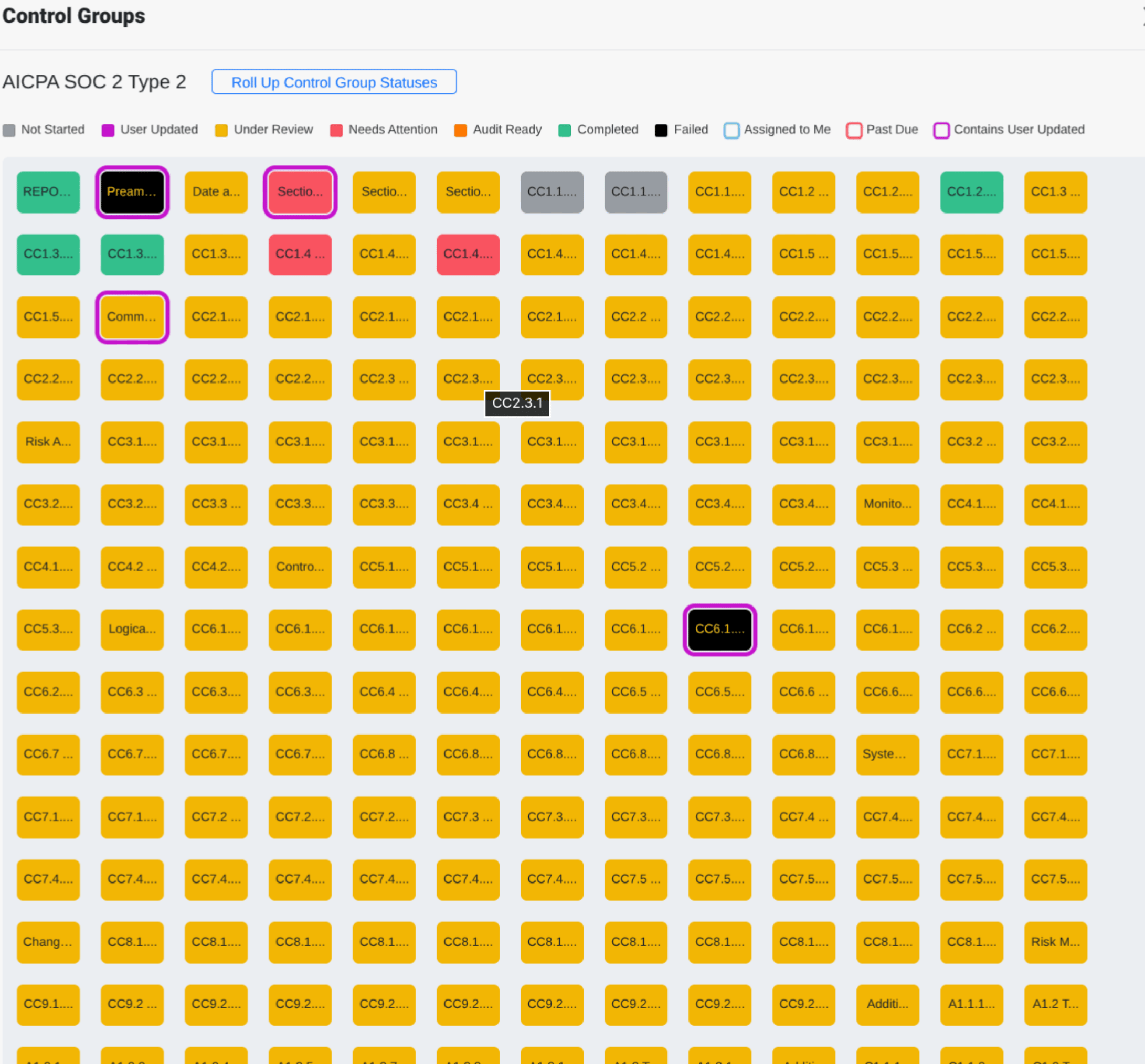
When you click on Review or Edit, you go directly to that version of the form (Reviewing or Editing modes). If you click on the Overview button, you’ll get a heatmap for the individual controls in that module and the associated completion and risk color ratings: